> For the complete documentation index, see [llms.txt](https://linecraft.gitbook.io/ikshana-pro-knowledgebase/llms.txt). Markdown versions of documentation pages are available by appending `.md` to page URLs; this page is available as [Markdown](https://linecraft.gitbook.io/ikshana-pro-knowledgebase/product-guides/reports.md).
# Reports
Create and schedule reports from industry standard templates
### Overview
The **Reports** feature enables you to create ready-to-use reports using predefined templates and schedule them to be delivered at preferred intervals.
The Reports module includes the following sections:
* Dashboard
* Schedule Report
* Scheduled Reports
* Received Reports
***
## Dashboard
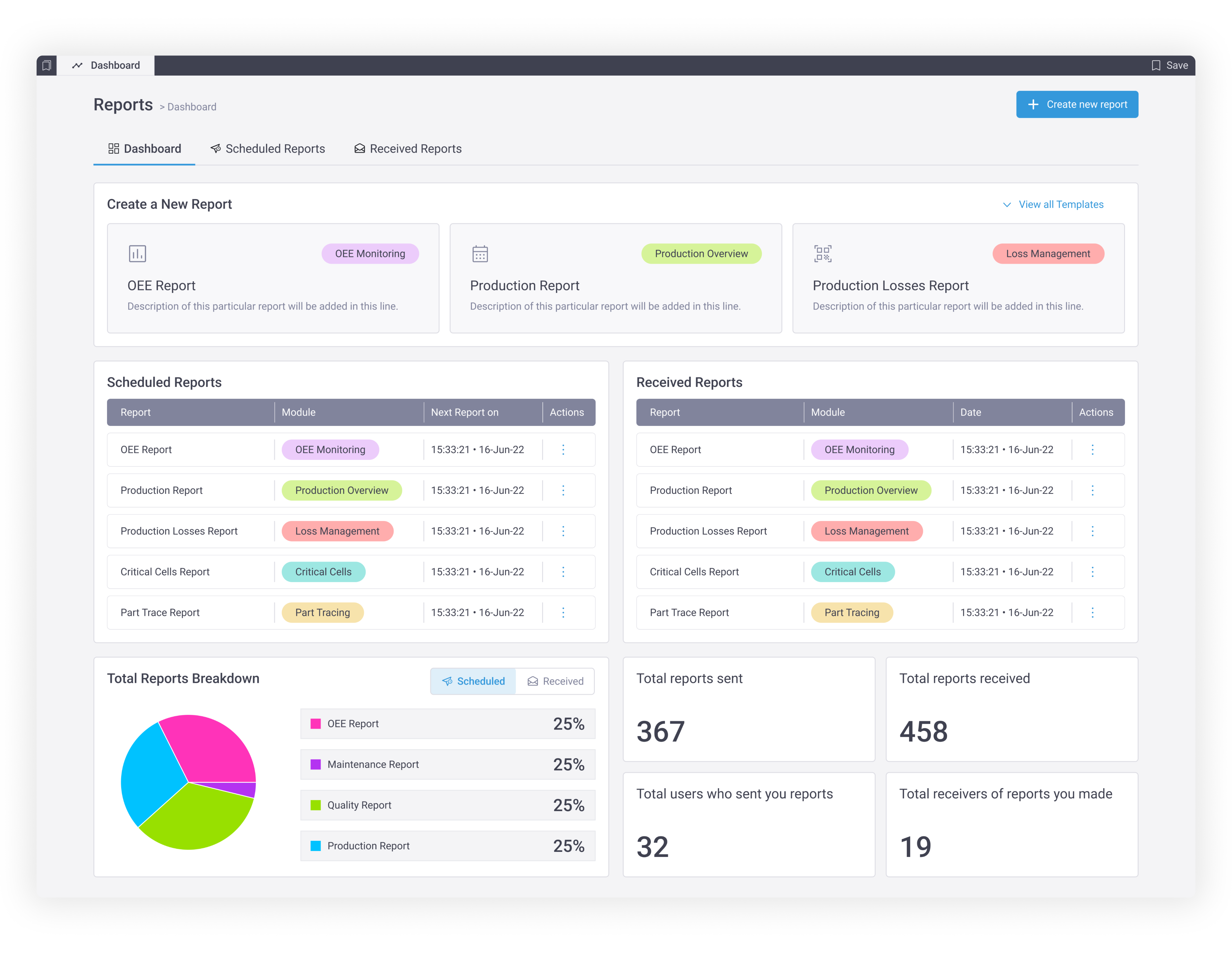
The **Reports Dashboard** provides a quick snapshot of reporting activity, including:
* The last 5 scheduled reports
* The last 5 received reports
* A breakdown of reports by modules
* Key metrics such as total reports sent and received
The dashboard also allows you to **schedule a new report** directly.
***
#### Creating a Report from the Dashboard
You can:
* Select a template from the template drawer
* Click **“View all templates”** to browse the complete list
***
## Scheduling a Report
You can schedule a report using either of the following methods:
* From the **Dashboard**
* Using the **global “Schedule Report” button** in the top-right corner
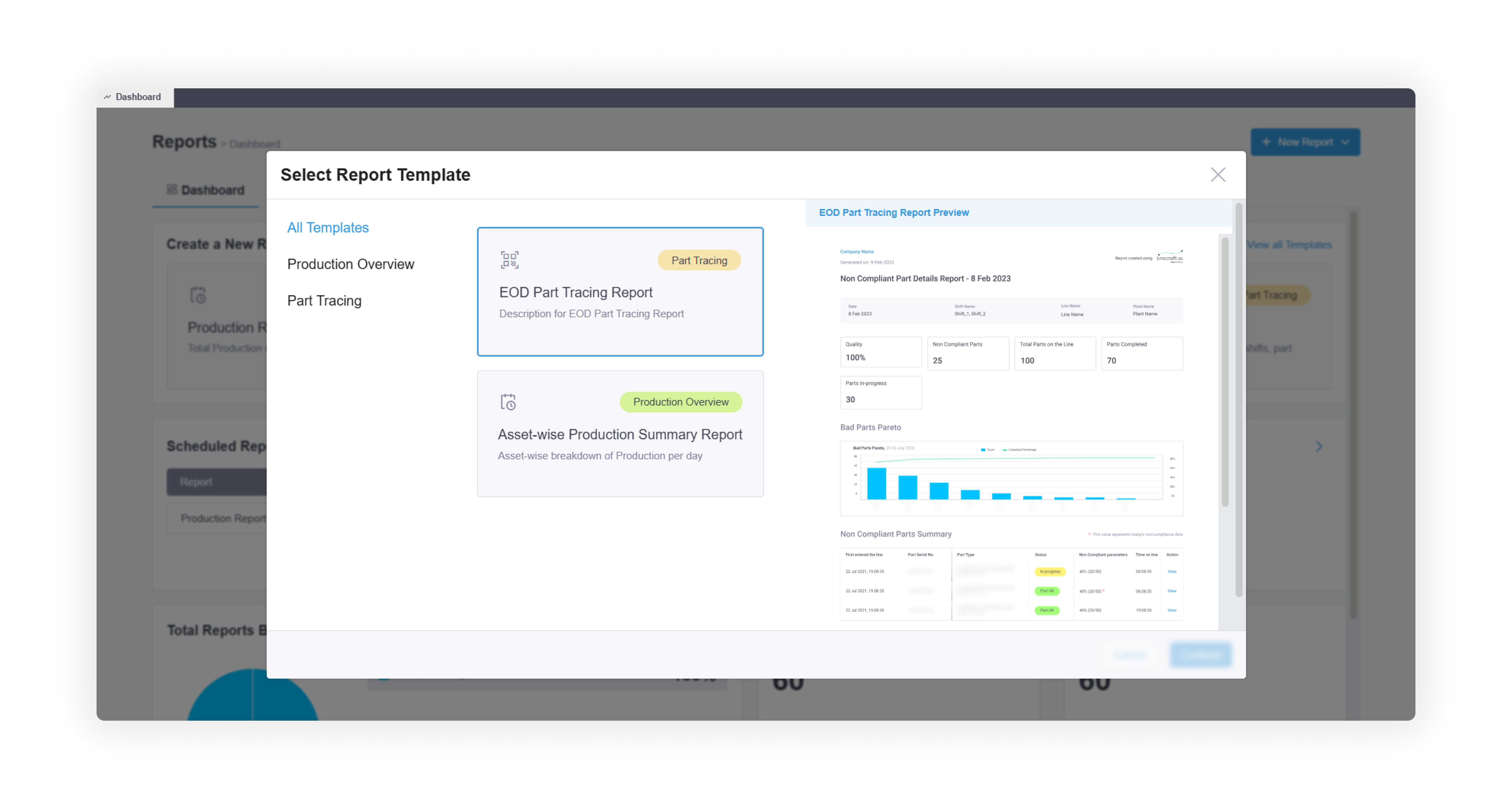
Both options open a template selection popup
***
### Template Selection
* Templates are grouped by their respective modules
* Each template includes:
* A description of the data included
* A preview of the report
Once you select a template, click **Continue**.
> **Note:** If you select a template directly from the dashboard (without clicking “View all templates”), you will be taken straight to the scheduling page with that template pre-selected.
***
### Report Configuration
After selecting a template, you will be taken to the **Report Scheduling Page**.
#### Template Selection
* The chosen template is pre-filled in the **Report** dropdown
* You can modify or change the template if needed
#### Shift Selection
* Select the shifts for which you want to generate the report
> **Note:** If multiple shifts are selected, a **single consolidated report** will be generated.
***
### Scheduling Options
You can configure **multiple schedules** for a single report.
Each schedule includes:
* **Frequency**: Daily, Weekly, or Monthly
* **Delivery Day**:
* Not applicable for Daily
* Select days for Weekly
* Select date for Monthly
* **Data Range**: Day, Week, or Month
* **Recipients**: Email addresses of report recipients
Once the report is successfully scheduled, a confirmation message will be displayed.
> **Note:** If multiple frequencies are configured, each will appear as a separate entry under Scheduled Reports.
***
## Scheduled Reports
The **Scheduled Reports** section displays all reports you have configured.
Here, you can:
* View report details and configurations
* Check the next scheduled delivery date
* **Pause** report delivery temporarily
* **Edit** or **Delete** existing schedules
***
## Received Reports
The **Received Reports** section lists all reports delivered to you, including those scheduled by others.
You can:
* View previously received reports
* Access report history anytime
***
## On-demand Reports
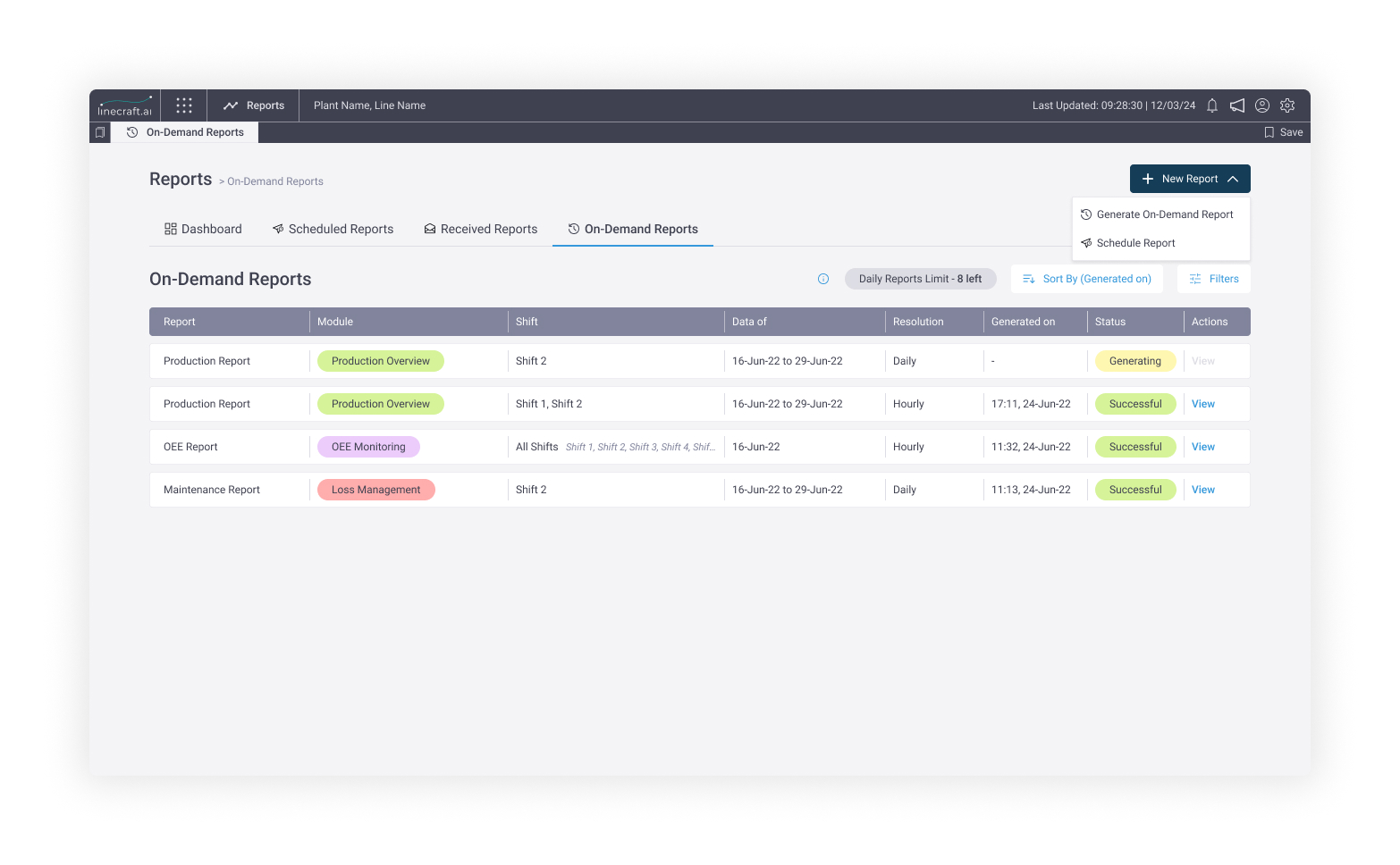
The **On-demand Reports** feature allows you to generate reports instantly without scheduling them in advance. This is useful when you need quick insights or want to analyze data for a specific moment.
#### Generating an On-demand Report
To create an on-demand report:
* Click **Generate On-Demand Report** to instantly create the report
* Select a report template from the available list
* Configure the required parameters such as shifts and data range
Unlike scheduled reports, on-demand reports are:
* Generated **immediately**
* Available to view for 7 days